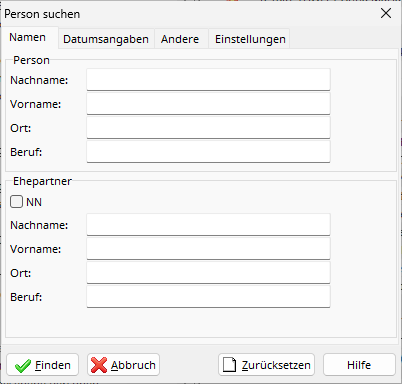
The search for individuals is conducted within the population of individuals in the selected directory. To search all individuals, execute the function using the directory "All Individuals" .
The Find button starts the search, the Reset button clears all input fields.
The search results are a user-created directory of people named "Search Results ." It is displayed in the person selector after the search is complete. This directory is temporary and will be deleted if you do not save it.
If your search criteria include last name, first name, city, or occupation, auxiliary data will be generated the first time you search this directory. This significantly speeds up the search. Generating this data may take some time. The auxiliary data is continuously updated whenever changes are made to the record. However, this auxiliary data does not persist after the program is closed and will be regenerated the first time the program is restarted.
Once the search is complete, the results viewer opens:
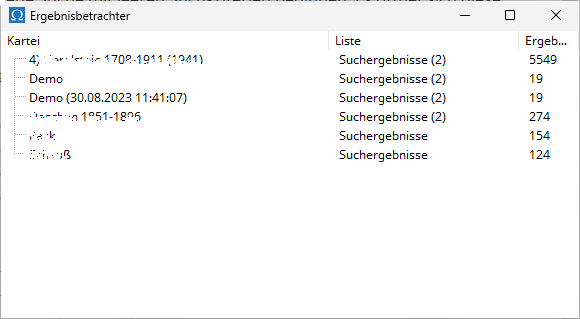
This lists, for each file in which persons matching the given criteria were found, the generated directory of persons with the search results and the number of persons found.
Double-clicking a row makes the corresponding person directory the currently displayed entry in the AGS Navigator . The results viewer remains open until you close it or start a new search across all files.
Before closing the results viewer, you can choose to remove the search results or save them permanently. Saving will retain the person index with the search results in each record where people were found, as if you had searched in that record. Otherwise, all temporarily created person indexes with the search results will be discarded.
The settings related to searching for people are displayed in the Settings tab.
The following describes the search criteria and the effects of each setting on the search result.
In the upper section, "Person," you can enter criteria for the name of the person you are searching for, and in the lower section, " Spouse, " you can enter criteria for the name of any spouse of the person you are searching for. For example, if you are looking for a Maria who was married to a Peter Schmidt, then enter " Maria" in the first name field in the upper section, and "Schmidt" in the last name field and " Peter" in the first name field in the lower section.
If you want to search for people who are married but no spouse is listed, then check the NN box.
When searching by name, capitalization is irrelevant ( Dillingen and dillingen or CRON and cron each produce the same result).
Multiple words can be entered into one field (e.g., Anna Maria in the first name field) so that only people matching all the words are found. The order doesn't matter (entering Anna Maria in the first name field will also find people with the first names Maria Anna ).
The search for locations is conducted using data on life dates, places of residence, and places of marriage.
If the "Fuzziness | Names" setting is set to "Exact ," an exact match is required. "Fuzziness" enables a spell-tolerant search. The "Exact" setting prefers to first attempt to find an exact match and only returns results from the spell-tolerant search if no exact match is found. The spell-tolerant search works as follows:
Instead of the exact name, its phonetic equivalent is used. This means, for example, that SCHMIDT , SCHMITT , and SCHMID , or CRON , KRON , KROHN , and CRONN are all considered equivalent. The phonetic equivalents of all names recorded in the database, as well as the name being searched for, are then broken down into trigrams (three-letter sequences), and the names with the highest number of matching trigrams are searched for (with TTL set to 1). If TTL is set to 2, the names with the second-highest number are also included, and so on. The higher the TTL setting, the greater the phonetic difference the found names can have from the word being searched for. The MLD setting specifies the maximum permissible Levensthein distance between the entered word and the found name. The Levensthein distance is the number of insertions, changes, or omissions of letters required to transform the word being searched for into the name. It acts as a filter to exclude results that deviate too much from the searched name.
Before examining the life data, it is intelligently narrowed down based on other life data to achieve the best possible result.
When searching by date, there is a setting called "Fuzziness | Dates" :
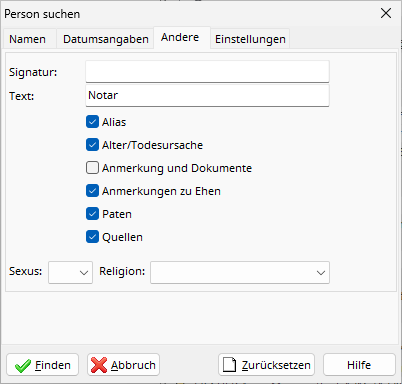
The setting Text | Case Sensitivity determines whether uppercase and lowercase letters are important or not. The setting Text | Search Mode offers two options for how the string entered into the search field is used in the search: