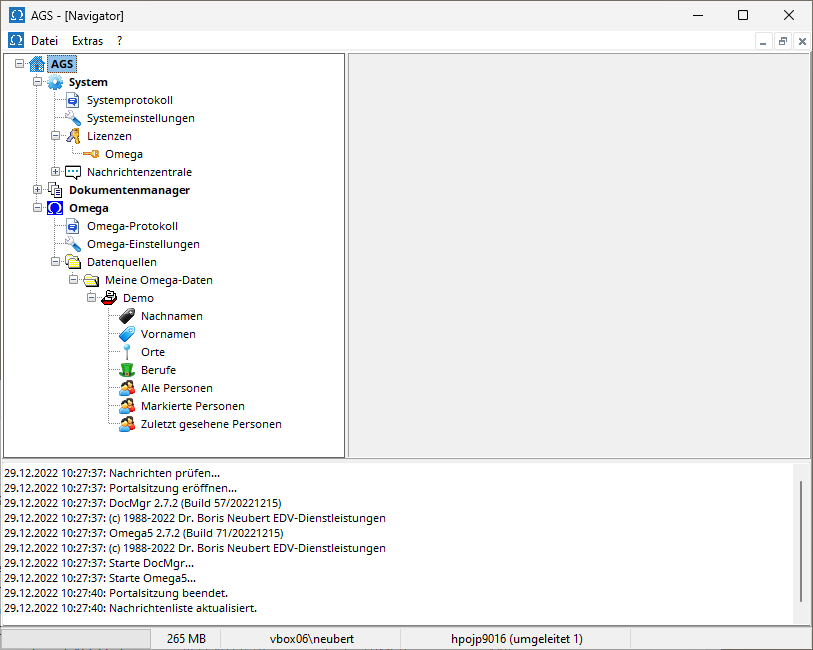
Unlike menu-oriented programs, where you select functions from a menu bar at the top of the window, AGS follows an object-oriented approach :
Unlike menu-oriented programs, where you select functions from a menu bar at the top of the window, AGS follows an object-oriented approach :
The tree view displays the hierarchy of objects you can work with in AGS. You can expand or collapse the objects belonging to a given object in the tree view by clicking the plus or minus symbol next to the object with the left mouse button. If the child objects contain further child objects, you can expand or collapse all of these further child objects at once using the "Expand All" and "Collapse All" menu items from the object's context menu . AGS remembers which objects are expanded and which are collapsed even after the program is closed.
Left-clicking an object displays its properties in the details view . Right-clicking an object opens a context menu , allowing you to perform all functions on that object.
To load a license, for example, open the context menu of the entry System | Licenses (icon: two keys) and select Load License . To work with the demo card file in the example shown above, for example, open the context menu of the entry Omega | Data Sources | My Data | Demo (icon: card file) and select Open .
For some objects, you can also access standard functions by double-clicking the entry in the tree view with the left mouse button. For example, you can also open a file by double-clicking the entry.
Some objects can be renamed from the context menu or by pressing the F2 key (documents, data sources, files, directories).
Once you have selected an entry by clicking with the left mouse button, you can move to the first/next entry that begins with a letter by typing it on the keyboard. This allows you to quickly find specific entries, e.g., files in Omega.
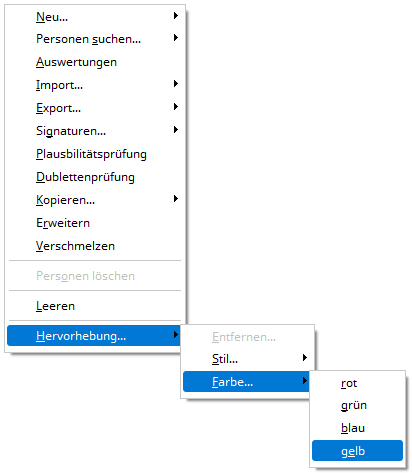
The "Highlight" option in the context menu allows you to highlight entries in the tree view. You can make the entry bold and italic, color it red, green, yellow, or blue, and remove the highlighting. Highlighting helps you quickly find individual entries and has no other function.
AGS remembers the size and position of the AGS navigator and restores them the next time the program starts.