[This page has been machine-translated.]
editor
General
The editor allows you to edit text files (text/plain, unformatted text) and RTF files (application/rtf, formatted text). The editor is accessed in the following situations:
- If you select the menu item Extras | Editor in the main menu .
- When you edit a document on an index card.
- If you edit a Gedcom file before importing it.
- When you edit the contents of a text file in Settings .
- When you select Edit from the context menu of an entry in the document manager .
Depending on the specific application situation, you can only edit one media type (text/plain or application/rtf) or only a single file at a time. If you open the editor from the Tools | Editor menu, you can use the buttons... In the upper right corner, you can open a new or existing file for editing, or close the currently edited file or all files.
structure
The Details tab displays the same detailed information as described under Details in the document manager. The Text tab displays the document itself.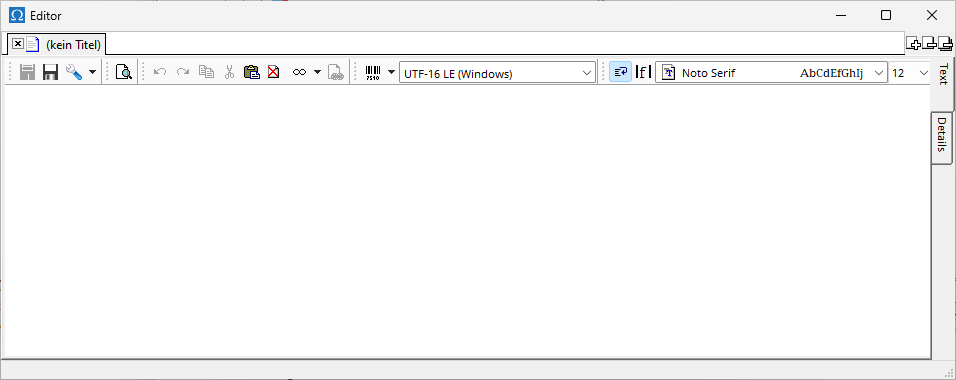
Editor menu bar

The buttons in the editor's menu bar have the following meanings (from left to right):
- Save (keyboard shortcut Ctrl+S )
- Save as
- Settings
- Load, save, and reset editor settings to default values
- Load, save, and reset toolbar positions to default values
- Undo (multi-step) (keyboard shortcut Ctrl+Z )
- Restore (multi-step) (keyboard shortcut Ctrl+Alt+Z )
- Copy selected text to clipboard (keyboard shortcut Ctrl+C )
- Cut the selected text and place it in the clipboard (keyboard shortcut Ctrl+X )
- Paste text from the clipboard at the cursor position (keyboard shortcut Ctrl+V )
- Delete the entire text in the editor permanently after confirming the security prompt.
- Accessing the character map (keyboard shortcut Ctrl+H )
- Inserting a link (keyboard shortcut Ctrl+L )
- Quick selection of a code
- Selecting a code
- Turn line wrapping on or off
- Switch between fixed and variable character widths
- Font selection
- Font size selection
Inserting links
You insert a link by either typing the link or using the link insertion dialog: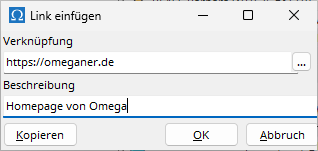
Enter the name of the file you want to link to in the top text field, or select the file by clicking the button labeled " ..." . Enter a description in the bottom field. When you click the "Copy " button, the selected file is automatically copied locally to the file, and a "local: " link is inserted instead of a "file: " link.
Notes
When you copy and paste text or parts of text from other programs into a text document (text/plain) in the editor, any formatting present in the original document is not retained. For example, if a last name in the original text is set in small caps ( Format | Character | Capitals in some word processing programs), this formatting will be lost.