The references can be found in documents 1 and 2 on the index card .
(Message from P. MEIER dated March 28, 2007)
Links are entered in square brackets. They have one of the following forms:
| form | Description | Example |
|---|---|---|
| [https:...|...] < | Link to a file on the internet | |
| [http:...|...] < | Link to a file on the internet | [https://omeganer.de|Omega website] |
| [file:...|...] | Link to a file on the computer | [file:C:\Fotos\Img-2141.jpg|Obere Mühle] |
| [local:...|...] | Link to a file in the current file (local copy) | [local:Img-2141.jpg|Upper Mill] |
The AGS editor helps you insert links to files and also allows you to create local copies of the referenced files (local links).
The advantage of local: links is that the referenced files are included in backups of the patient file and restored along with the index cards when the file is restored . This allows you to share the patient file, including all referenced files, with a third party. However, copying the files to the REPO folder requires more storage space.
However, if references are made to files in another location, the links will usually lead nowhere if these files are moved or deleted, or if the file is copied to another computer where the files do not exist.
Overall, before using links, you should carefully consider whether or not you want to use local links, and how this usage corresponds to the purpose of the directory.

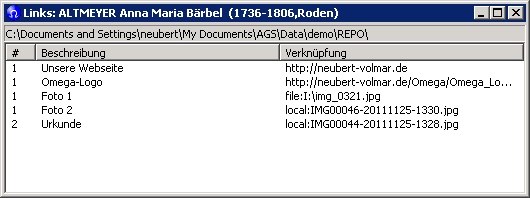
The menu bar of the tab contains a button labeled with a link symbol. Clicking this button with the left mouse button opens the list of links contained in documents 1 and 2. You must first have entered the links into the documents as described above.
The list shows the path to locally stored files. The columns of the list contain
When analyzing data in RTF and HTML formats, links within the documents are not treated like regular text: links to document files ( .doc , .rtf , .odt , .txt ) are embedded, while links to other files create hyperlinks. If the linked files are image files ( .jpg , .jpeg , .bmp , .gif , .png ), the images are also displayed directly within the RTF or HTML file.
Clicking a hyperlink in the created RTF or HTML file will open the file to which the link refers using the program that is set up by default in Windows for that file type.
Please note that the linked files are not embedded in the RTF or HTML file, but merely references to files on your computer. If you share the created RTF or HTML file with a third party, the recipient will not be able to open the files or view the images. However, you can convert the RTF file into a PDF file with embedded images and then share the PDF. You can do this, for example, with the free program PDFCreator or using the corresponding function in your word processing program.
Embedding documents only works with Microsoft Word and not with OpenOffice and LibreOffice.
To delete the links in Microsoft Word, you can find the corresponding commands under Edit | Links in Microsoft Word 2003 and under Prepare | Edit links to files in Microsoft Word 2007.