[This page has been machine-translated.]
GEDCOM import
Introduction
Gedcom import is currently available in Omega's classic user interface . The Gedcom settings come into play during Gedcom import.
operation
Preliminary considerations
It is recommended to create a backup of the target file before importing a Gedcom file into it, so that the initial state of the target file can be restored after importing a faulty or poor Gedcom file. The best way to check the quality of the GEDCOM file you want to import is to first import it into a new record . If you are satisfied with the result, copy the imported individuals, or a portion of them, from the new record to the actual target record. You can then delete the new record.
GEDCOM Import Wizard
Right-click on any person directory and select Import | Gedcom from the context menu. In the current program version, it doesn't matter which person directory you select – after the import, the imported people will only be located in the "All People" directory and in a new user-created person directory . The Gedcom import wizard opens:
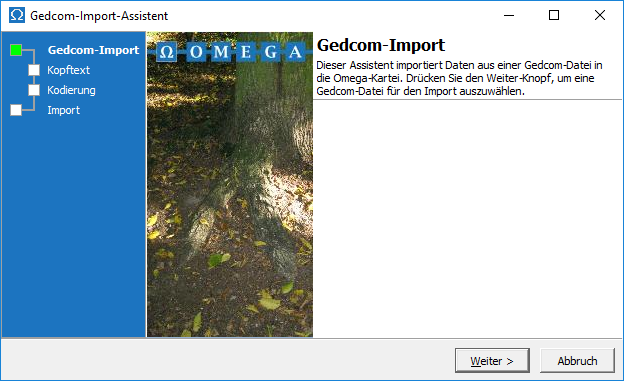
Click Next to select the file to import. If you already know the file's encoding , you can select it in the dialog box. The next step displays the header of the GEDCOM file:
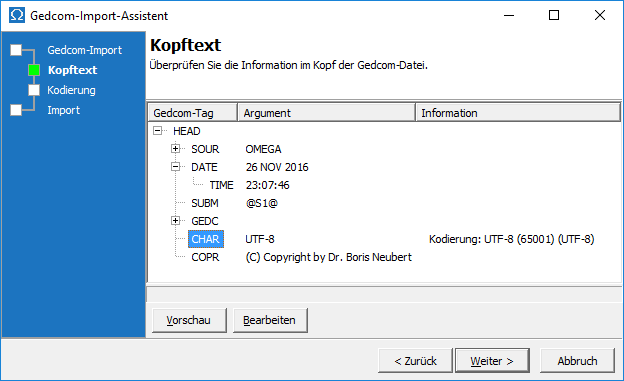
Here you have the option to view or edit the file. Click Next to view the file's encoding :
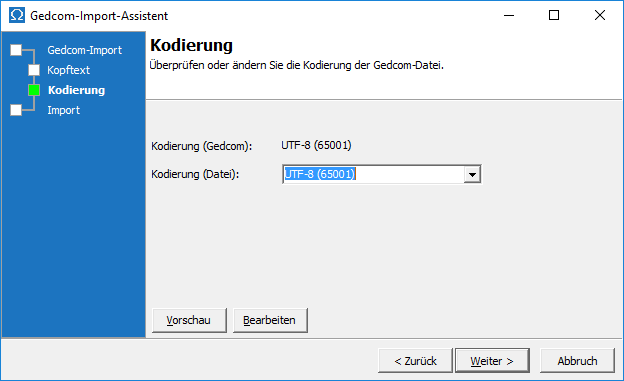
Under Encoding (Gedcom) , you can see the encoding specified by the creator of the Gedcom file, and under Encoding (File) , you can see the encoding in which the file is currently loaded. Set the file's encoding to the value specified under Encoding (Gedcom) . If you are unsure, you can open the file in the document viewer by clicking Preview and check, for example, whether the umlauts are displayed correctly or whether you see garbled text due to incorrect encoding.
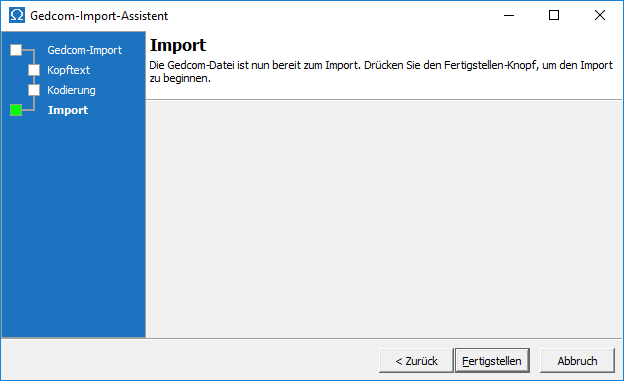
In the final step, click Finish to begin the import:
Import process
An import log is generated during the import process, which you can view during and after the import and save in the document manager .
A first pass through the GEDCOM file then takes place to prepare for the import. Before the actual import begins, a prompt allows you to review the import log and decide whether to proceed. If you decline, the record remains unchanged. Otherwise, the import begins and cannot be interrupted.
The import process creates a user-defined directory of people , which contains all imported people.
At the end of the import process, the log includes an overview of the import procedure and lists of invalid and unprocessed tags. The GEDCOM import is designed to be tailored to the user's needs. If, after an import, you are missing data that was present in the source system or the GEDCOM file, and you can attribute this to unprocessed tags, you should contact support . This request may allow for an extension of the import process to include the interpretation of additional tags.
Import of places
During GEDCOM import, the user selects and incorporates the place name components from the PLAC tag into the place name, while the additional information is stored in Omega. If a PLAC tag with the same place name and additional information is subsequently imported, the place already stored in Omega is referenced again. If a PLAC tag with the same place name but different additional information is imported, an additional place is added to Omega. Since this additional place cannot have the same name as the first imported place, one of the additional pieces of information is appended to the place name of the additional place with a hyphen to distinguish it from the first imported place. When exporting locations, please select the following order in the exporting program (maximum number of characters in parentheses): place name (25), current municipality (25) or blank, area (3) or blank, country (3) or blank.
Example: PLAC Piesbach, Nalbach, SAA, D
You can freely choose the identifiers for region and country. During import, you will be asked which field you want to import the individual components into.
Omega-specific tags
The specific tags for Omega are:
| _ALIA |
Alias |
| _GODP, GODP |
godparents |
| _QUAY |
The quality of a date is subordinate to the date (DATE); values are 0 = uncertain, 1 and 2 = probable, 4 = calculated. |
| _URFAME |
Alias |
| _SIGN |
signature |
| _WITN, WITN |
Witnesses are subordinate to the family (FAM). |
Special processing during GEDCOM import
When importing Gedcom files from the following source systems, special processing is used that takes into account the specific features of the Gedcom formats written by these programs:
- omega
- Family Tree Maker for Windows
- Convert for GenPlus
- Reunion (Leister Productions)
- Griot
- PC Ancestors 2001/2004
- GenProfi 4 (please contact support )
If the source system you want to import from is not listed here, it does not mean that an import is not possible, but rather that the files written by the source system are compliant with the standard, or that imports from this system have not yet been tested. Notes
- If a corrupted GEDCOM file contains references to people, but no INDI record exists for that reference in the GEDCOM file, the person will be created as an NN (unknown person) upon import into Omega, but not added to the directory of all people. The next time the database is started, the person directory will be reported as corrupted. You will then need to regenerate it. You may prefer to continue working with the backup you created before importing the corrupted GEDCOM file.
- If a FAM record for a same-sex relationship has two HUSB or two WIFE entries, any children in that FAM record will be assigned to the person in the last listed entry when imported into Omega, since children in Omega can be assigned to at most one father or one mother.