[This page has been machine-translated.]
Omega transfer
Introduction
The Omega transfer copies a large number of people from one database to another. You can either copy all people in a directory or individual people.
Procedure
To copy all persons in a person directory to another file, click the person directory in the source file with the left mouse button in the tree view of the AGS Navigator and drag the person directory, while still holding down the mouse button, to a person directory in the target file. To copy one or more individual people, first select these people in the details view of the person directory :
- Individual persons: While holding down the Ctrl key , click on the relevant persons one after the other with the left mouse button.
- Range of people: With the Shift key pressed, click the first person and then the last person with the left mouse button to select all people in between.
- All persons: using the keyboard shortcut Ctrl+A in the detail view of the person directory, you select all persons contained therein.
Then, click on a selected person with the left mouse button, keep the mouse button pressed, and drag the person to a person directory in the target file while still holding down the mouse button. A prompt will appear:
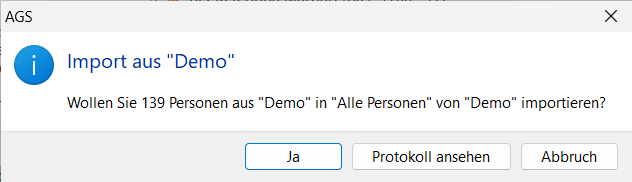
The log provides information about the import and any special features before it is executed:
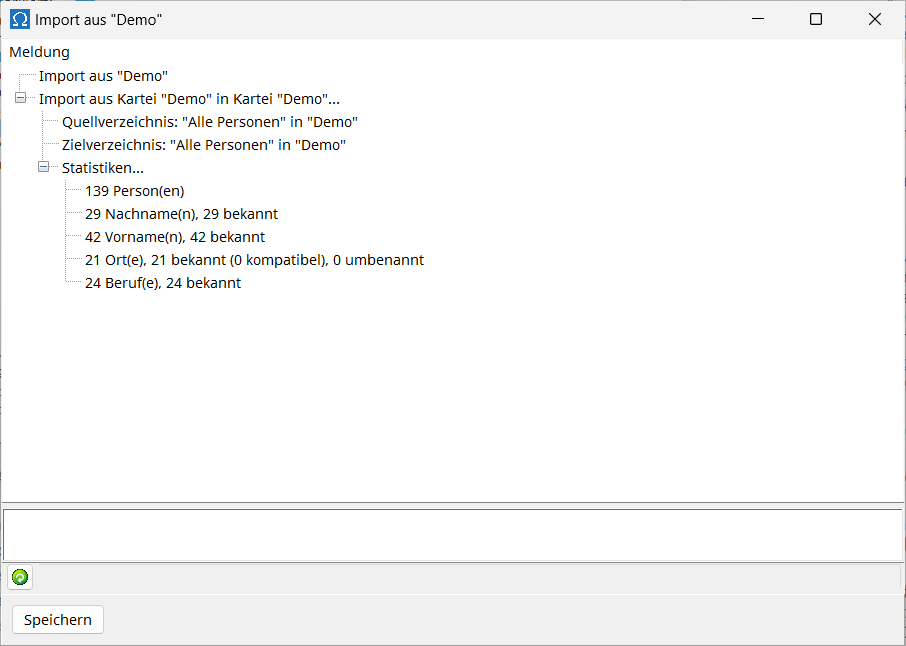
Once the import is complete, you can view the entire import log.
Result of the import
Lists of persons
All imported persons appear in the person directory in the target file to which you dragged the person directory or persons to be imported. They also appear in the "All Persons" directory. Furthermore, a directory of persons is created with a name in the format Import YYYY-MM-DD hh:mm:ss (the import time is encoded in the name), which contains only the imported persons. You can disable the creation of this directory in the Omega settings .
People and connections
During the import process, in addition to the imported persons, their last names, first names, places and professions are newly created in the target file, provided these are not already recorded there. Furthermore, links to parents, spouses, and children are copied only if these individuals are copied in the same import process. Therefore, it makes a difference whether you copy a person and their father separately or together. If you copy the individuals individually, the father-child link will not be created in the target record. When copying them together, the father-child link is retained.
If you copy a person but not their spouse in one go, the marriage information for that person will be copied along with them, and the uncopied spouse will be set to NN (unknown) if you have selected the option to import incomplete marriages in the Omega settings . By default, marriage information is not copied unless both spouses are copied simultaneously.
Special considerations when importing locations
Omega's concept stipulates that different places are designated with different names, while identical place names refer to the same location. This places the user's responsibility in ensuring that, when importing individuals and their associated locations from one database (source database) to another (target database), the naming conventions are consistent in both databases. For example, if the location Dillingen already exists in the source database, it should refer to the same place in both databases, such as Dillingen/Saar , and not Dillingen/Saar in one database and Dillingen/Donau in the other. Omega largely automates this process by using additional location information (state, territory, postal code, current municipality, document) and a potentially associated entry in a place name database (GOV ID, coordination, abbreviation) to determine whether the place name in the source database matches the corresponding place name in the target database. This is done according to the following rules:
- Location not found: If no location with the same name as the location to be imported exists in the target file, the location from the source file will be created anew in the target file during the import.
- Locations are considered the same: If all additional information is identical, or if no additional information is available for either location, the location to be imported and the existing location are assumed to be the same. During import, the location from the source record is mapped to the location in the target record. When checking for equality, coordinates are still considered the same if they are at most one kilometer apart.
- Location compatibility: If the location to be imported and the existing location differ only in additional information not recorded in the other location, the two locations are considered identical. During import, the location from the source record is mapped to the location in the target record, and the additional information present in the source record is added to the location in the target record.
- Location incompatibility: If the two locations differ in additional information present in both, the location from the source record is renamed during import and created under the new name in the target record. In this process , (2) is appended to the location name; Dillingen becomes Dillingen(2) . If this location name already exists, (3) is appended instead, and so on. However, before this occurs, a check is performed to ensure that the location from the source record does not already exist in the target record with such an appended number and is identical or compatible. This prevents an incompatible location from being created again with each import from the same source record to the target record.
If compatible or incompatible locations are detected during import preparation, the user is informed via a warning dialog that they should review the log before deciding to actually perform the import. Tip
Please proceed as follows if you wish to copy a person and their family from the source file to the target file:
- Create a new person directory in the outgoing file.
- Add the person to this list of people.
- Expand this list of people to include those from the family environment of the person listed.
- You then import the person directory created as a result of the extension into the target file as described above.