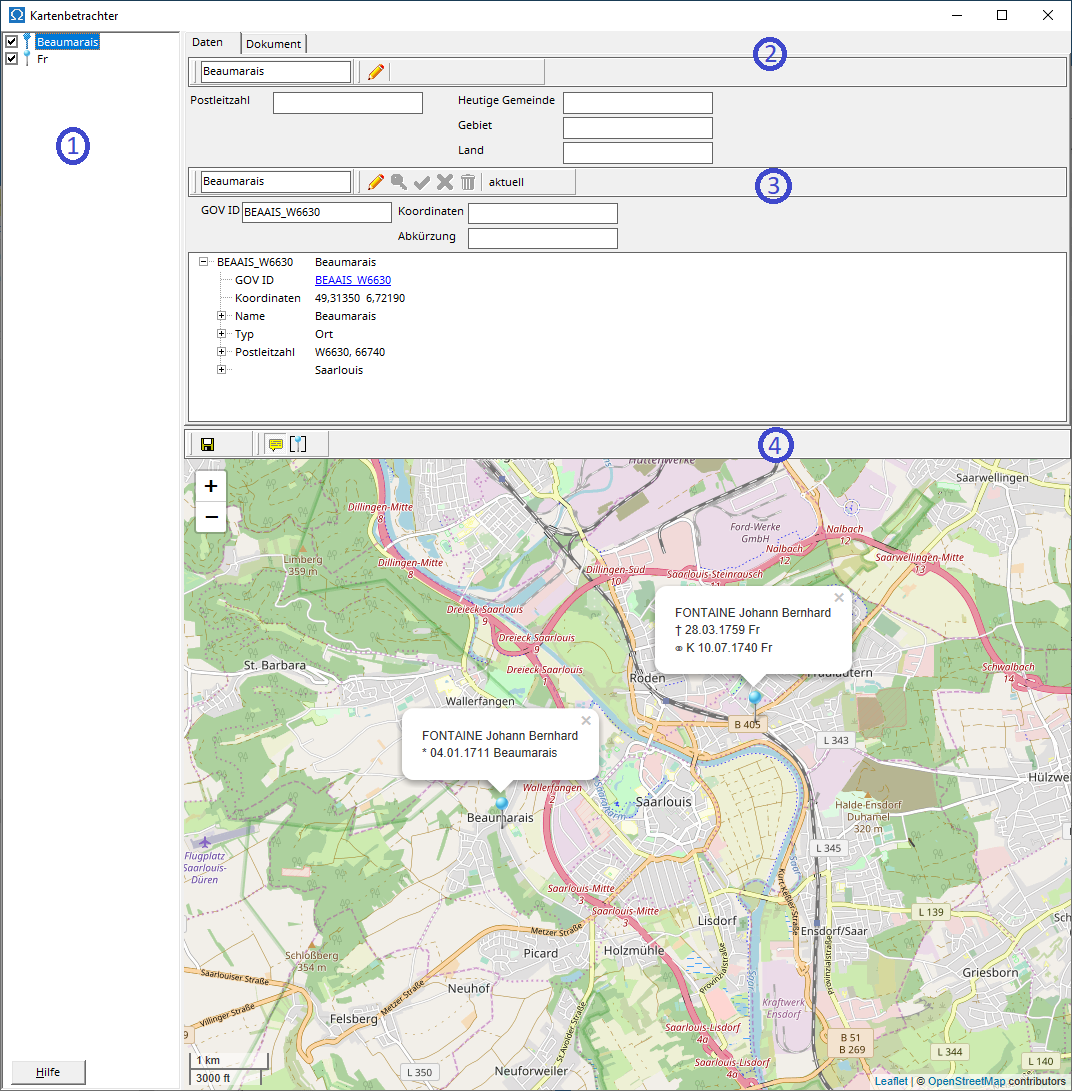
A blue pin indicates that coordinates exist for a location. The coordinates used are those stored in the location database for the location with the same name, if available. Coordinates explicitly entered by the user into the location database take precedence over coordinates read from the assigned GOV object .
The map displays all locations from the place list for which coordinates are available. Individual locations can be excluded from the map view (4) by removing the checkmark next to the location.
The location information (2) and the entry in the location database (3) refer to the entry currently selected in the location list.
To edit the location information, first switch to edit mode by clicking the pencil icon, and then change the details or the document. The location name cannot be changed. Clicking the green checkmark or the red cross saves your changes or cancels the edit and returns to the original information.
The upper part of the entry contains the information from the location database , the lower part (GOV viewer) shows the information that is read from the GOV for the GOV object assigned using the GOV ID.
To edit an entry in the location database, first switch the location information to edit mode by clicking the pencil icon, and then change the details. Clicking the green checkmark or the red cross saves your changes to the location database or cancels the edit and returns to the original information. Clicking the trash can icon deletes the entry from the location database.
Clicking on the magnifying glass icon will take you to GOV geocoding , where you can assign a GOV ID to the location.
You can either type in the coordinates or select them on the map. To do this, unlock the coordinates by clicking the red pin in the map's menu bar (4). You can then drag the pin on the map to the desired coordinates. Clicking the green checkmark or the red cross in the map's menu bar (4) saves the changed coordinates or cancels the edit and returns to the original coordinates. Clicking the trash can icon in the map's menu bar (4) deletes the manually entered coordinates.
Clicking the save icon in the map's menu bar (4) saves the displayed map section as a graphic file. The speech bubble icon shows or hides information about the person for whom the map viewer was opened. The pin icon automatically adjusts the map view to display all pins.