[This page has been machine-translated.]
Moving a program between computers
Task
AGS/Omega is installed on computer A and is now to be moved to computer B. The settings and files from computer A should be restored identically on computer B. Procedure
On computer A:
- Start AGS on computer A.
- Save all settings on computer A to a file via the menu item Tools | Save settings .
- Create a backup copy of each file that is to be moved.
- Exit AGS on computer A.
On computer B:
- Copy the file containing the saved settings and the backup copies of the files from computer A to any folder on computer B.
- Install AGS on computer B according to the instructions .
- Start AGS on computer B.
- If asked whether you want to download a license, answer " No" .
- Load all settings from the file transferred from computer A via the menu item Tools | Load settings .
- If the desired data source is not yet set up, connect it.
- Now the backup copies of the files transferred from computer A are being restored .
The migration is now complete. It's essentially a copy on computer B, as the installation with all settings and files remains on computer A. Moving with many files
If you need to transfer a lot of files from computer A to computer B and are somewhat experienced in using Windows Explorer and handling files, you can make the move easier as follows. In the description above, omit the backup of the files to computer A and the restoration to computer B.
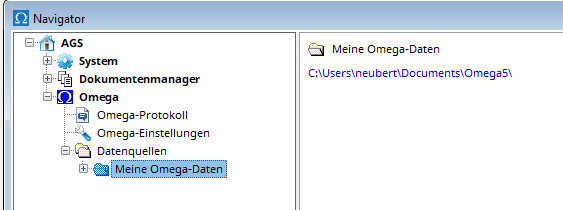
Each card file is stored in a subfolder of a data source . To open the data source on computer A in Windows Explorer, select the data source in the tree view of the AGS Navigator with the left mouse button, and then left-click the link containing the full path to the data source in the details view of the AGS Navigator. Then copy the entire contents of this folder to the folder of the corresponding data source on computer B, which you can access via the AGS Navigator.