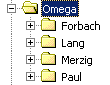
To access the file in the Forbach folder, you need to connect the Omega folder as a data source.
For example, regarding the folder structure
To access the file in the Forbach folder, you need to connect the Omega folder as a data source.
Under no circumstances should users have the same file open simultaneously on two different computers while OneDrive synchronization is active. This will lead to data loss.
The default data source is located in the Documents folder, which is synchronized with OneDrive by Windows by default if OneDrive synchronization is enabled.
If the network drive is provided via Samba, the following settings should be configured in Samba, otherwise the folders in the classic user interface might not function correctly:
dos filetimes = yes
fake directory create times = yes
dos filetime resolution = yes
default case = lower
preserve case = no
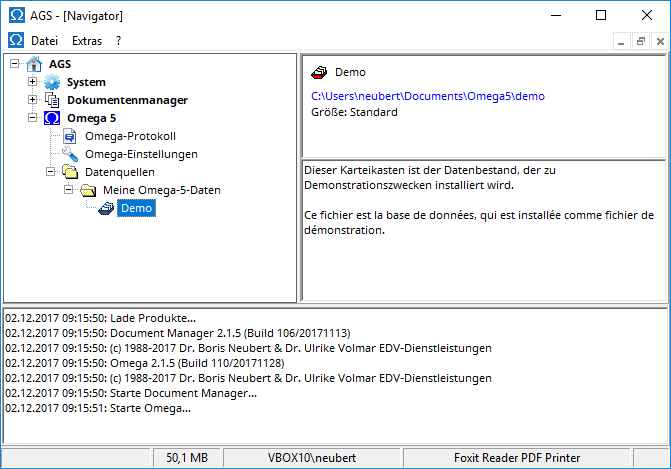
Clicking the blue link will open the data directory in Windows Explorer.
If you have managed data in an older version of Omega and cannot find it in a newer version, you can use this method to check where the data is stored in the older version and then add the folder containing the data as a data source in the newer version, as described above.