[This page has been machine-translated.]
Plausibility check
Test rules
The plausibility check verifies the plausibility of a person's life data. The following scenarios are flagged as implausible. Some of these scenarios are theoretically possible (e.g., in cases of divorce), but occur rarely, which is why Omega alerts the user. The system also assumes that baptism and burial occur shortly after birth and death, respectively, so that if a birth or death date is unavailable, the baptism or burial date can be used as an approximation.
- Birth, baptism, death, and burial are not in chronological order.
- Age above the maximum age according to settings .
- Minimum age of one parent not reached according to settings .
- Maximum age of the mother exceeded according to the settings .
- Birth or baptism later than 300 days or 330 days after the death of the father, respectively.
- Birth or baptism after or later than 30 days after the death of the mother.
- Marriages do not lie between birth and death.
- Marriage before baptism.
- Minimum age of one spouse according to the settings not reached.
- Church wedding takes precedence over civil marriage, provided the check is enabled in the settings .
- Entered into another marriage while the previous spouse is still alive.
Omega first determines, from all available life data, the time intervals within which an event must have occurred. If the information is imprecise (around), the following time intervals are assumed:
| by year |
± 5 years |
| by month/year |
± 3 months |
| by day.month.year |
± 10 days |
Using the example of the constellation * before 1710, marriage 1630, it should be mentioned that this class of implausibilities is not found, as it does not lead to any mathematical contradiction, although the person who entered the data probably wanted to enter * before 1610, marriage 1630 .
Examination of all persons in a directory
Right-click on a person's directory in the AGS tree view to open the context menu . There you can select the "Plausibility Check" function. This will check each person's entered biographical data for plausibility. After the plausibility test is completed, a notification window will appear with a results report describing the potential data conflicts found for each person in the directory of implausible records.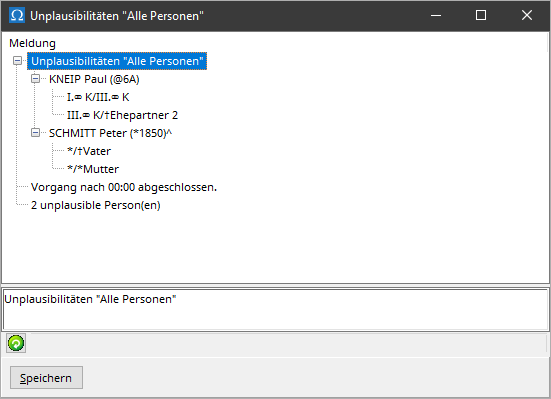
Left-click the plus symbol next to a name to expand the view of identified data conflicts for that person. Right-clicking the top row of the results report opens a context menu where you can expand or collapse all rows at once.
You can save the results report.
Additionally, a list of implausible persons is created as a results list in the overview of person directories.
Examination of a specific person
To determine the plausibility of an individual's data, open the person's record card and select the plausibility check function from the menu. -Menu of the index card.
 Check when saving a person
An automatic plausibility check takes place on the record card when a person's information has been changed and is to be saved. Detected data conflicts are reported in a notification window along with the results report for that person. If you choose not to resolve the conflicts, for example, because the data is actually correct, and you save the person, the conflicts will not be flagged again the next time the record card is accessed, unless the person's data is changed and is to be saved again. To retrieve ignored conflicts, you must manually initiate the check as described in the two previous sections. Workflow for checking and resolving implausibilities
To perform a plausibility check on all persons in a file, investigate any inconsistencies found, and correct them if necessary, proceed as follows:
- Perform a plausibility check on all persons in the "All Persons" directory. A directory named "Implausibilities "All Persons" will be created as a results list. This results list is your worklist.
- Open each person in this results list one by one.
- Run the plausibility check from the -Open the index card menu to view the specific exam result for the selected person.
- Correct any implausibilities.
- Use the submenu
 in the menu bar of the index card , to remove the person from the list of people under "All persons" and thus from your worklist as completed.