[This page has been machine-translated.]
preview
The preview window is used to display a print preview of the document or diagram, to print it, or to save it as a PDF file.
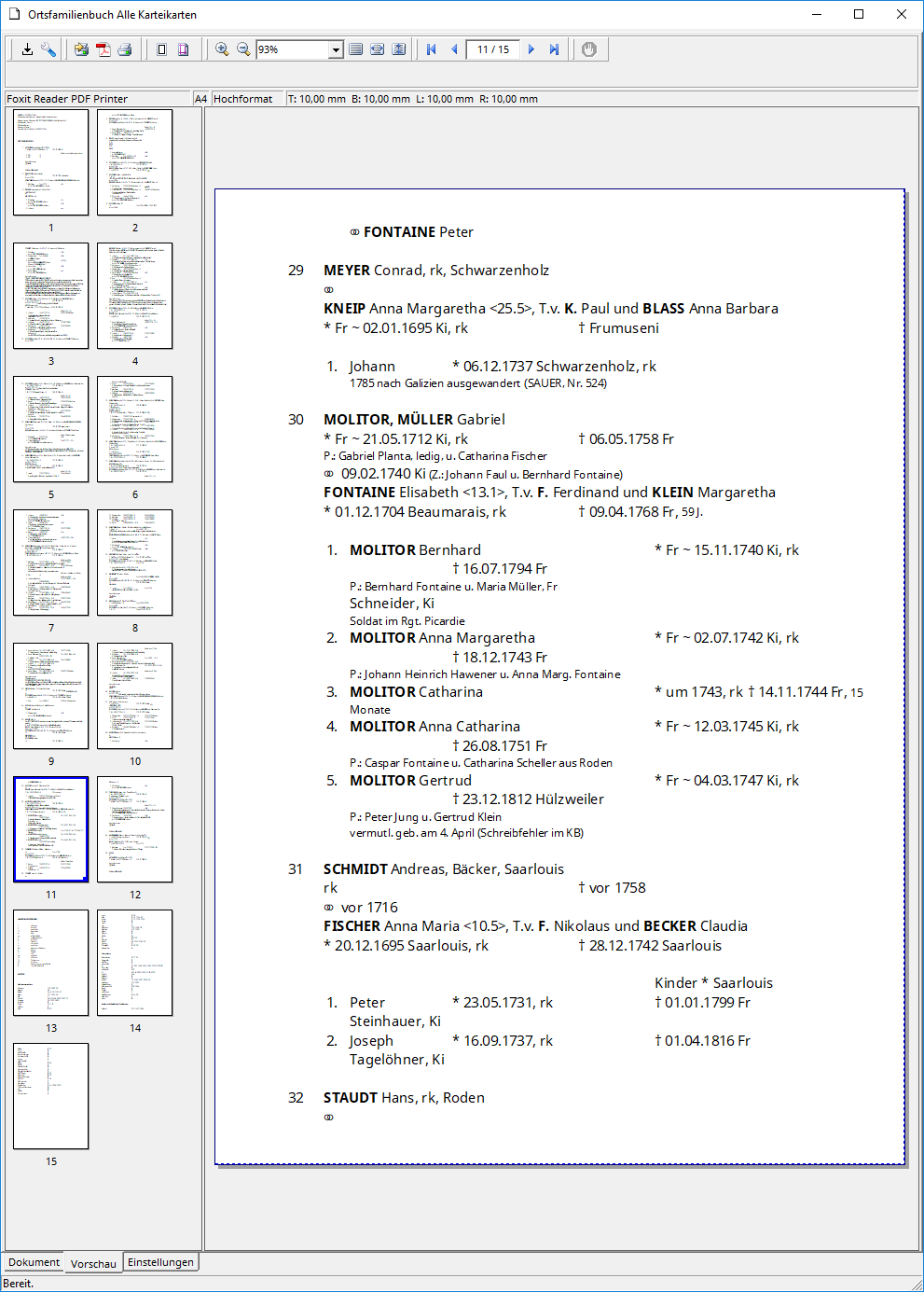
You operate the preview using the icons in the menu bar.

These have the following meaning (from left to right):
- Save current settings as default
- Printer setup (dialog)
- -
- Print document directly
- Save document as PDF file
- Print document
- -
- Show/hide frame around print area (to display print margins)
- Set paper size and orientation as well as print margins (dialog)
- -
- Enlarge view (zoom in)
- Zoom out (reduce the view)
- Adjust magnification
- Adjust the view so that the entire page is shown.
- Adjust the view so that the entire page width is shown.
- Adjust the view so that the entire page height is shown.
- -
- Go to the first page
- Go to previous page
- Enter the number of the page to which you want to go.
- Go to the next page
- Go to the last page
- -
- Cancel preview creation
The document preview depends on its media type :
- Text (text/plain): as unformatted text
- RTF (Rich Text Format) (application/rtf): as formatted text
- Gedcom (application/x-gedcom): as plain text
- HTML (including navigation) (text/html): as formatted text
- CSV (text/csv): as unformatted text
- Omega-5 reports (application/vnd.omega.report): none, always converted beforehand to text (text/plain), RTF (application/rtf) or HTML (text/html) (see Use with Omega-5 reports )
- Omega-5 diagrams: graphical representation